tautuilli-notification-digest#




tautuilli-notification-digest (TND) creates "digest" (timed summary) notifications of Media Added events for discord using Tautulli's discord notification agent.
What Does It Do?#
Tautulli already provides an email "newsletter" that compiles triggered events (media added) from Plex and then sends it as one email at a set time.
This same functionality does not exist for notifications. This functionality is often requested for discord and there are even some existing guides but they are quite involved.
This app provides a drop-in solution for timed notifications that compile all of your "Recently Added" Tautulli events into one notification.
Quick Start#
Assuming:
- Host machine IP is 192.168.1.101
- Tautulli and TND will be installed on the same machine using Docker with bridge mode networking
- Discord webhook/notification agent already setup in Tautulli
- You want the digest to be posted at 5pm Eastern Standard Time
Setup Docker#
- Include environmental variables for:
- Your existing discord webhook from Tautulli discord notification agent using
DISCORD_WEBHOOK - The 5pm cron expression using
CRON
- Your existing discord webhook from Tautulli discord notification agent using
- Map the default port 8078
- Create a volume to persist data
docker volume create tnd_data
docker run -e TZ="America/New_York" -e DISCORD_WEBHOOK="https://discord.com/api/webhooks/606873513" -e CRON="0 17 * * *" -p 8078:8078 -v tnd_data:/config -d ghcr.io/foxxmd/tautuilli-notification-digest
TND endpoint is now available at http://192.168.1.101:8078/my-digest
Modify Tautulli#
Edit your existing Tautuilli discord notification agent:
- On the Configuration tab
- Change Discord Webhook URL to
http://192.168.1.101:8078/my-digest - Make sure these settings are set
- ✅ Include Rich Metadata Info
- ✅ Include Summary
- ✅ Include Link to Plex Web (optional)
- ❎ Use Poster Thumbnail
- Change Discord Webhook URL to
- On the Triggers
- ✅ Recently Added
Save your changes. TND is now setup and running.
Install#
Docker#
- Dockerhub -
docker.io/foxxmd/tautulli-notification-digest - GHCR -
ghcr.io/foxxmd/tautulli-notification-digest
Local (Node)#
clone https://github.com/FoxxMD/tautulli-notification-digest.git .
cd tautulli-notification-digest
yarn install
Setup#
Tautulli#
You must first configure a Tautulli discord notification agent.
In your agent ensure these settings are used:
- Configuration
- Discord Webhook URL
- TND location + Slug (see below)
- ✅ Include Rich Metadata Info
- ✅ Include Summary
- ✅ Include Link to Plex Web (optional)
- ❎ Use Poster Thumbnail
- Discord Webhook URL
- Triggers
- ✅ Recently Added
If you already have an existing agent you will re-use the Webhook url for TND so save it!
Your Discord Webhook URL for Tautuilli will be the location of the TND server + your configured slug.
Example:
- TND and Tautulli on the same computer, using ENV setup =>
http://localhost:8078/my-digest - TND on a different machine (192.168.0.180) than Tautulli, using ENV setup =>
http://192.168.0.180:8078/my-digest - TND on a different machine (192.168.0.180) than Tautulli, using config setup with slug
test=>http://192.168.0.180:8078/test
Configuration#
TND can be run using either environmental variables or a configuration file. If you want to customize how TND behaves you will need to use a configuration file.
ENV#
If you are fine with all default settings then TND can be configured using only environmental variables.
| Environmental Variable | Required? | Example | Description |
|---|---|---|---|
| DISCORD_WEBHOOK | Yes | https://discord.com/api/webhooks/606873513 |
The discord webhook for a channel you want to post to. This would be the same hook you used when setting up Tautulli notifications. |
| CRON | Yes | 0 17 * * * |
A cron expression for when TND should send notifications. The example sends a notification once a day at 5:00pm local time. |
| FORMAT | No | Always use the specified embed format instead of collapsing for space. Options are: poster, thumbnail, text, list | |
| PORT | No | 8078 | The port the web server will listen for incoming events from Tautulli |
| TZ | No | America/New_York | Timezone identifier to use. Defaults to UTC. |
Docker#
Add environmental variables using the -e flag and create a persistent volume for TND data:
docker volume create tnd_data
docker run -e DISCORD_WEBHOOK="https://discord.com/api/webhooks/606873513" -e CRON="0 17 * * *" -p 8078:8078 -v tnd_data:/config -d ghcr.io/foxxmd/tautuilli-notification-digest
Local#
Export your variables before the run command or use a .env file
DISCORD_WEBHOOK="https://discord.com/api/webhooks/606873513" -e CRON="0 17 * * *" yarn run start
File#
An example config file with all options can be found here.
Docker#
Mount a directory containing your config.yaml file to the /config directory in the container:
docker run -v /host/path/folder:/config -p 8078:8078 -d ghcr.io/foxxmd/tautuilli-notification-digest
Local#
Add your config.yaml to a new folder named data in the project directory.
Run#
Make sure you have:
- Setup a Tautuilli discord notification agent
- Are using either environmental variables or a file configuration
The below run examples will send one summary digest notification a day to discord at 5pm local time.
Docker#
Note: When using a bridge network (docker default) make sure you map the correct server port (8078 by default) from the container to host.
Note: You must persist data! If
- Using only ENVs then create a volume
- Using a file (
config.yaml) then bind a directory
docker run -v tnd_data:/config -e DISCORD_WEBHOOK="https://discord.com/api/webhooks/606873513" -e CRON="0 17 * * *" -p 8078:8078 -d ghcr.io/foxxmd/tautuilli-notification-digest
Local#
DISCORD_WEBHOOK="https://discord.com/api/webhooks/606873513" -e CRON="0 17 * * *" yarn run start
Options#
This section will cover major options for the file configuration but is not exhaustive. For a more complete example reference the example configuration or the entire config schema can be explored here. Use the Example (YAML) tab to see examples of individual objects.
Embed Formats#
TND can display notifications in several formats with increasing levels of compactness:
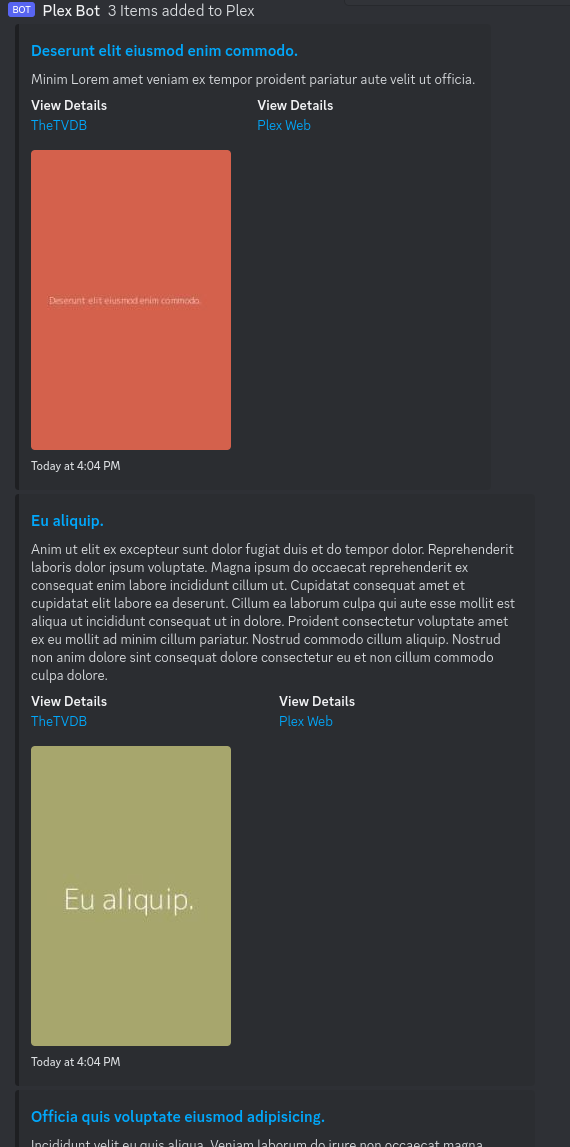
Poster#
The default and same way Tautuilli displays notifications.
Thumbnail#
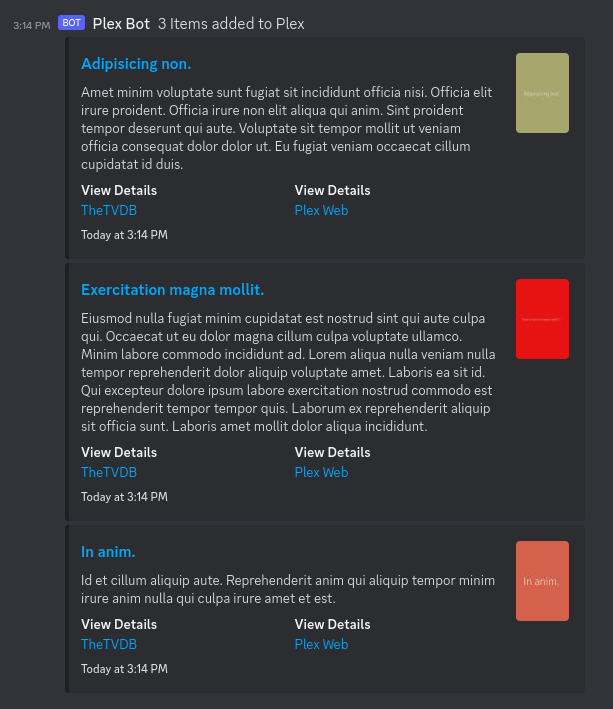
Display post image as a thumbnail
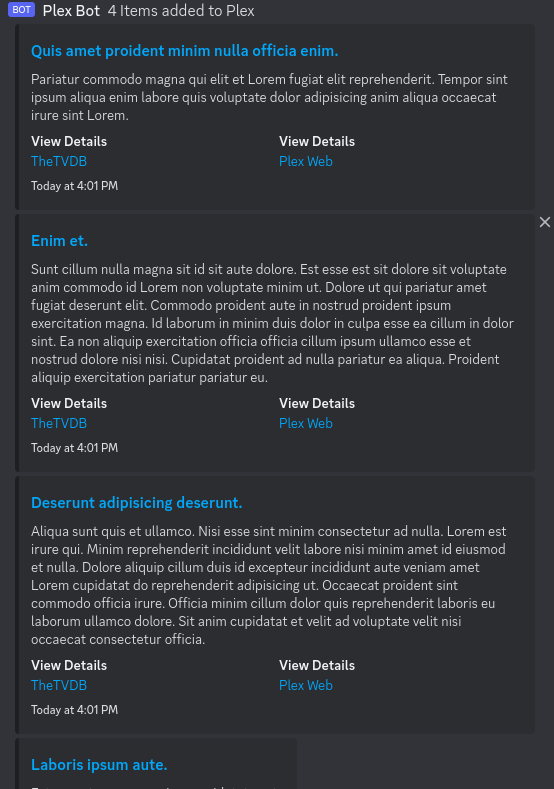
Text#
Does not include any images but still includes linkable title, summary, and other links.
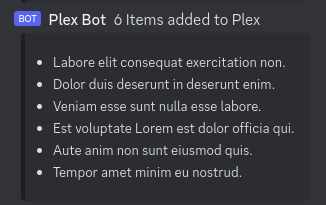
List#
Only includes title of the notification (media name)
Embed Format Collapse#
You can configure what format TND will render notifications in based on the number of notifications that have been collected since the last time it posted a digest.
These thresholds are configured in the config file like this:
digests:
  - cron: '...'
    discord:
      webhook: '...'
      options:
        list: false
        text: false
        thumbnail: 2
        poster: 0
TND determines which format to use by checking for format type threshold by increasing compactness:
List -> Text -> Thumbnail -> Poster
Example:
- 10 pending notifications
list: 15 | text: 9 | thumbnail: 8 | poster: 1textwill be chosen because 10 > 9- Note: TND will not consider any "larger" format sizes if a smaller format (
text) condition is true, even if larger formats have higher thresholds
- Note: TND will not consider any "larger" format sizes if a smaller format (
Note: Setting a format to false disables it from ever being used.
Default Collapse Settings#
The default thresholds are:
list: false
text: false
thumbnail: 2
poster: 0
IE
- If any pending notifications exist,
posteris used - If 2 or more pending notifications,
thumbnailis used
Overflow#
Discord only allows 10 embeds per message. If your digest would render more than 9 embeds then TND will automatically create an overflow embed that renders as a list.
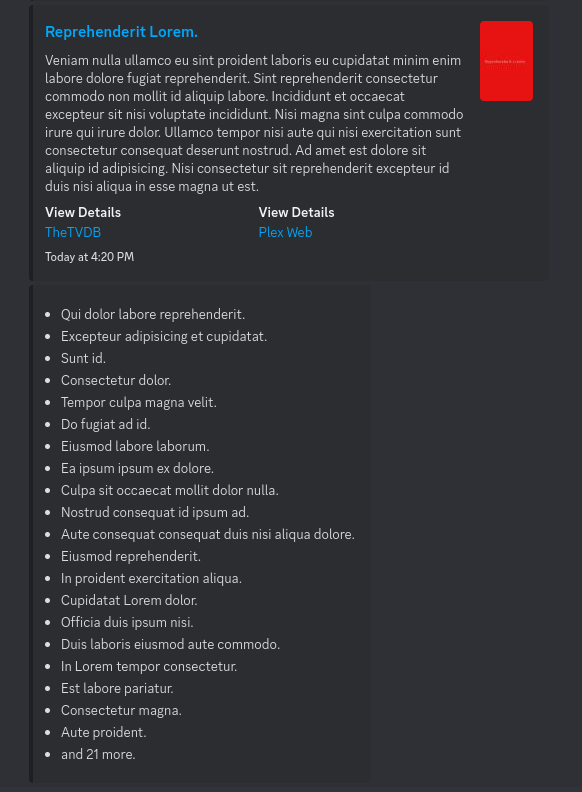
The number of notifications shown in the overflow list is truncated after overflowTruncate number of notifications and a remaining count is shown.
digests:
  - cron: '...'
    discord:
      webhook: '...'
      options:
        overflowTruncate: 20 # defaults to 20
Deduplication Behavior#
TND can prevent duplicate, or already seen notifications, from being rendered in a digest. This is useful if Tautulli sends identical notifications after an initial notification which can occur for things like:
- New metadata is added (summary or iamges are fetched from plex agent)
- Adding multiple episodes to a season at different time periods
- A newer/better quality version of an existing movie/episode is added (replaced) in Plex
TND detects duplicates by comparing the title of the message sent by Tautuilli. EX: Season 1 of Show x was added to Plex or New Movie (2023) was added to Plex.
Behavior options are:
'all'- Prevent any notification that has been processed by TND before from being future digests'session'(default) - Prevent duplicate notifications within one session IE only unique pending notifications -- if a duplicate is detected it is used instead of the original b/c we assume metadata may have changed'never'- Always allow duplicates
API#
Tautuilli Webhook#
Any POST request to a URL NOT starting with /api will be treated as a Tautulli Discord Notification request.
Run Pending Notifications#
Using the slug defined for your digest (ENV defaults to my-digest) make a POST request to
http://SERVER_IP:8078/api/SLUG
and TND will immediately process any pending notifications.
TIP: Create a bookmarklet for your browser to run this easily:
- Using https://www.yourjs.com/bookmarklet in the Bookmarklet Javascript box:
fetch('http://MY_IP:8078/api/my-digest', {method: 'POST'}).then();
- Convert to Data URL
- Drag and drop converted data url into your bookmarks
Then the bookmark can be clicked to trigger pending notifications to run.